Register for an Oceans 3.0 account & get more features
- You can view SeaTube without logging in, but you need an account to access and use SeaTube tools.
Related Links
What is it?
SeaTube is an easy to use video annotation system utilizing either archived or real-time/live streaming video. It provides support for unlimited, geographically separated groups of users who can simultaneously apply annotations to the video stream.
SeaTube has a new homepage in Oceans 3.0
It can be accessed via https://data.oceannetworks.ca/SeaTube
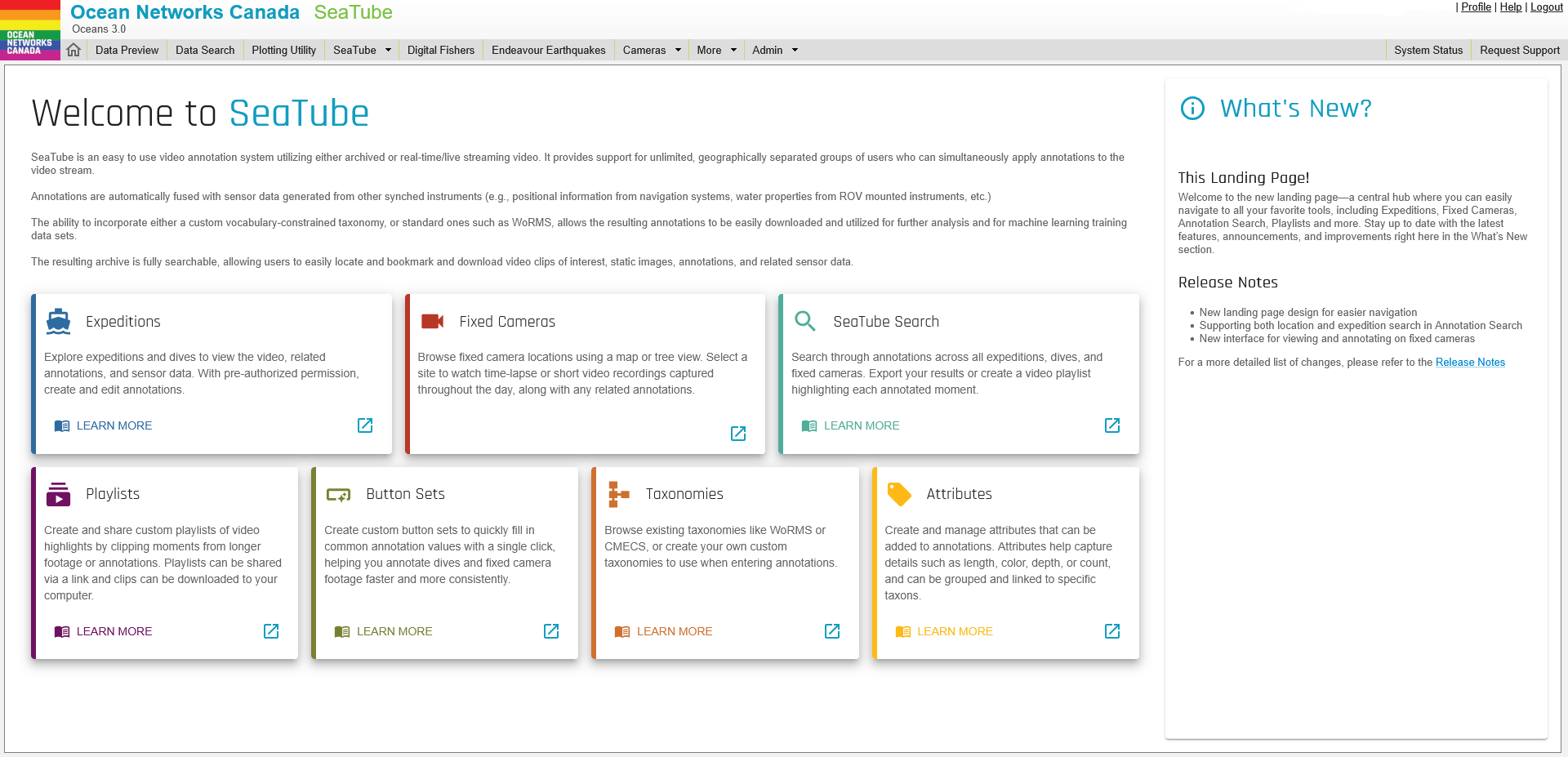
Each tile provides information on the various SeaTube tools as well as links to access those tools in Oceans 3.0.
Which version should I choose?
From the main menu, you can choose which version of SeaTube to use:

If you want to view videos from fixed cameras positioned on the seafloor or onshore, select Fixed Cameras.
For viewing or annotating video from Remotely Operated Vehicle (ROV) dives, select Expeditions.
How to use Expedition Management and Dive Log
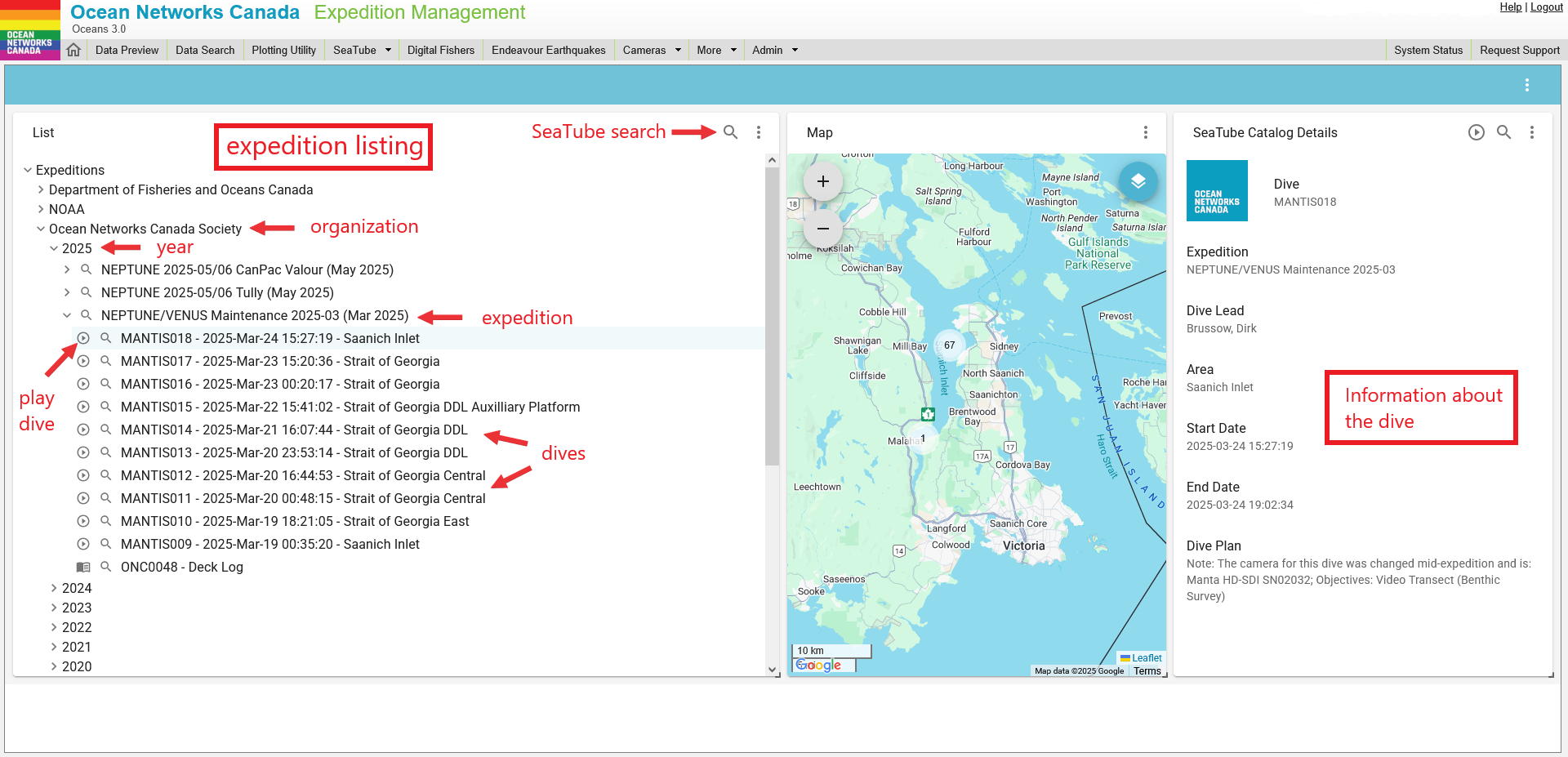
In Expedition Management, all dives are listed by organization, year, and cruise. Select the dive you want click on the  play button to go to the dive log.
Troubleshooting:
- Dive not appearing in the list? Check that 'Seatube Ready' is selected in the dive metadata page.
- Expedition not appearing in the list? You may not have permission to view that organization's expeditions.
- Year not appearing in the list? If none of the expeditions in that year have had a Seatube Ready dive in them, the year will not appear.
When you click the play button in Expedition Management you will be directed to the dive log, which defaults to the layout below.
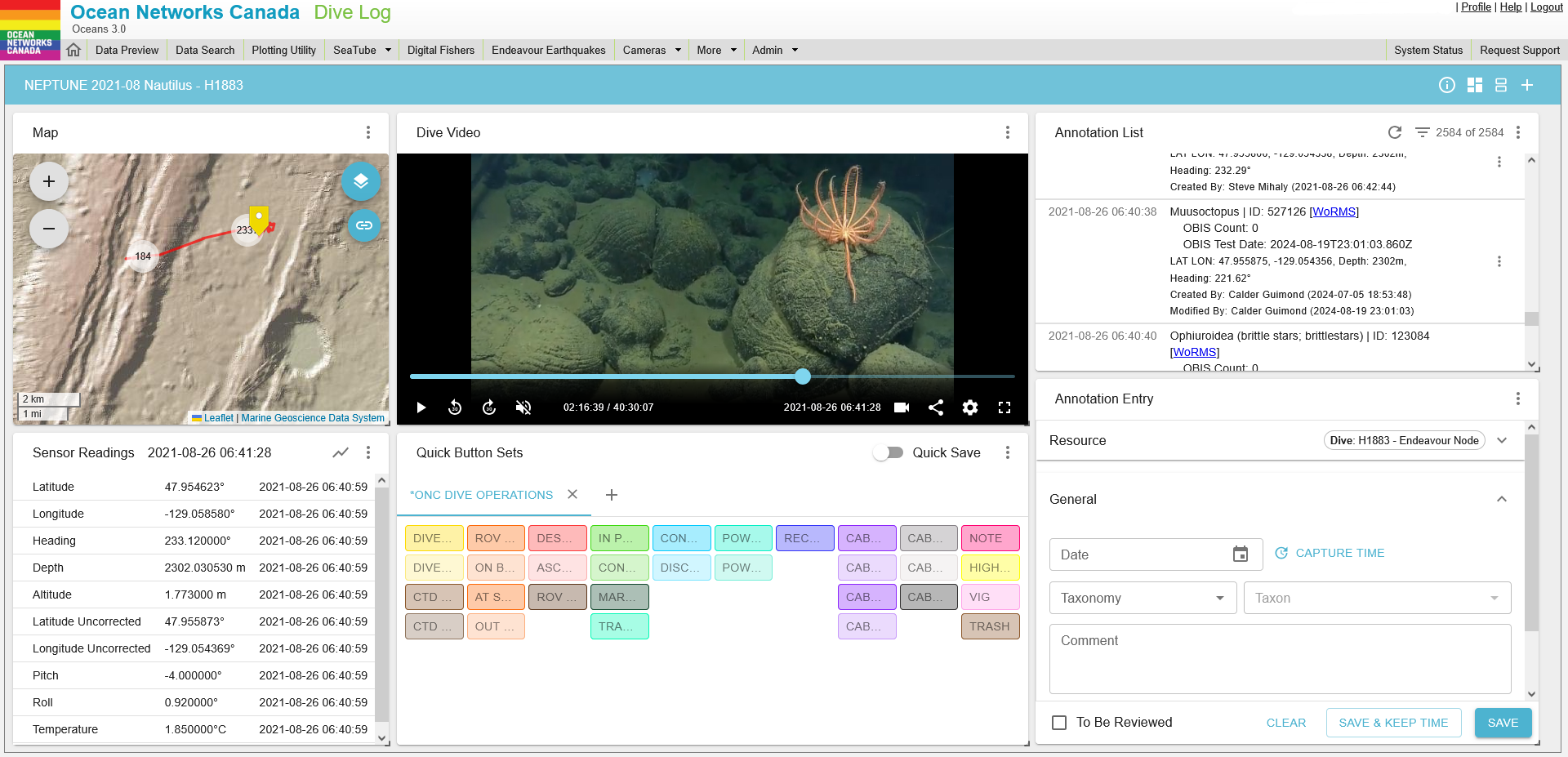
A number of different widgets or panels are available within the Dive Log:
- Video: Video display and control window
- Map: shows the location where the video was recorded. For ROV dives, the vehicle's track and annotation locations are also shown
- Quick Button Sets: Pre-built button sets for faster and more standardized annotating
- Annotation List: List of annotations for the current video
- Annotation Entry: Tools for creating new video annotations
- Sensor Readings: Environmental measurements recorded by sensors on the ROV or nearby the camera during the video
At the top of the Dive Log interface there is a title bar which has 4 additional settings buttons.

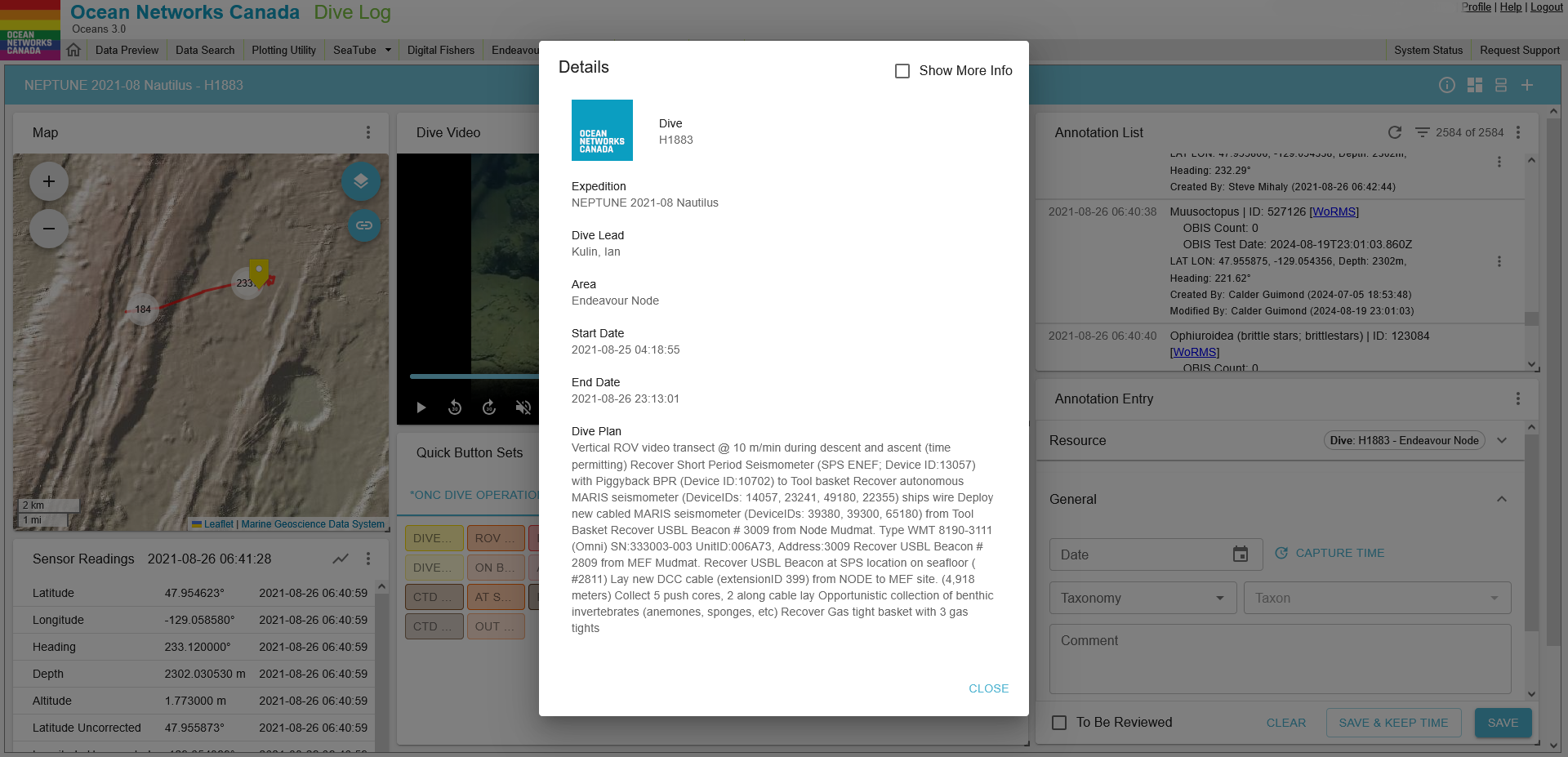
The info button  displays information about the current dive. Click Show More Info to display the platform and camera.
The layout button  accesses the Layout Settings menu, which shows Pre-Defined Layouts (different configurations of widgets) for the page, and gives users the option to create custom layouts.
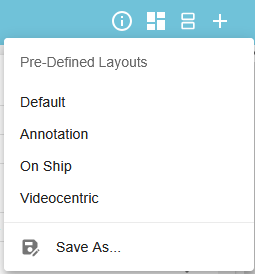
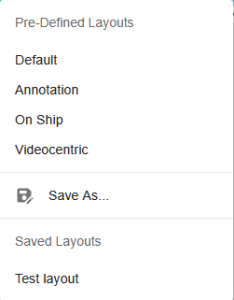
To create a Custom layout, arrange the widgets in any configuration you like and then hit Save As and give your layout a name. Custom layouts will appear in the Layout Settings menu under Saved Layouts and can be accessed at any time.
The new window button  opens a new window which allows users to utilize widgets on multiple windows, which could be helpful if screen size is limited. The new windows are synced, when an annotation is created in a separate window it will appear in the Annotation List in the main window.
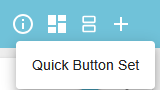
Finally, users can add additional widgets to the dashboard using the add button  . Any widgets that are removed will appear in this list to be re-added if desired. The default layout includes all available widgets.
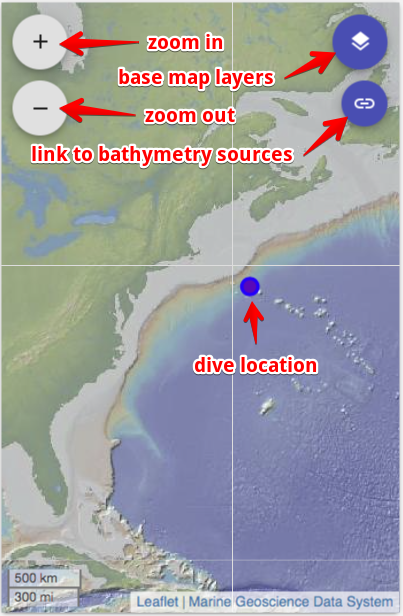
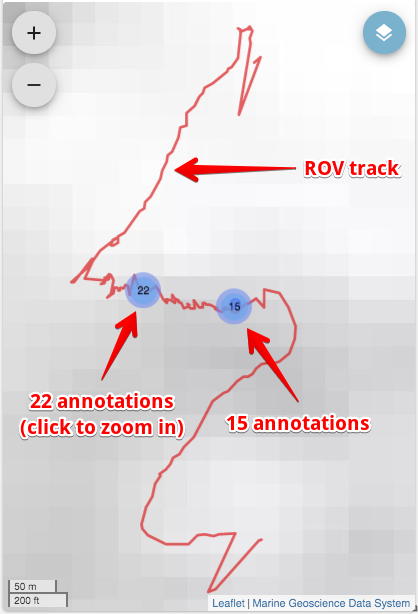
When you open a dive in SeaTube Dive Log, a map is displayed. This zoomable map shows seafloor bathymetry along with the track along which the Remotely Operated Vehicle (ROV) followed during the dive. Clicking a dot on the track line takes you to that point in the video.
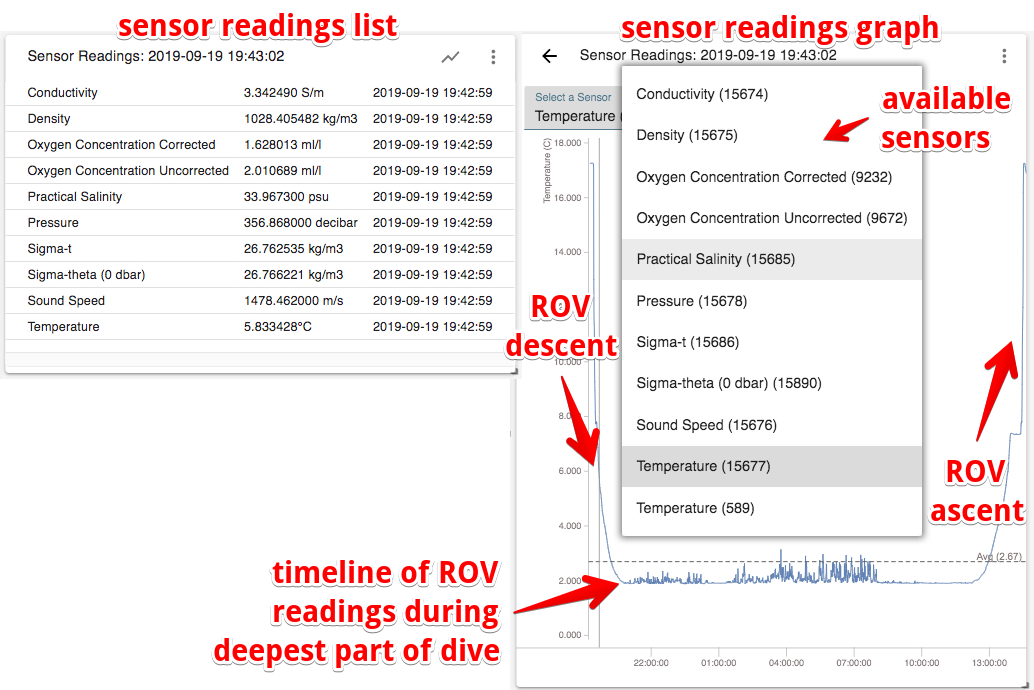
You can view readings from instruments attached to the Remotely Operated Vehicle (ROV) during a dive. When first displayed, they are shown in numerical form, updated for each annotation. You can switch to graphical display sensor readings over time using the show graph button  .
.
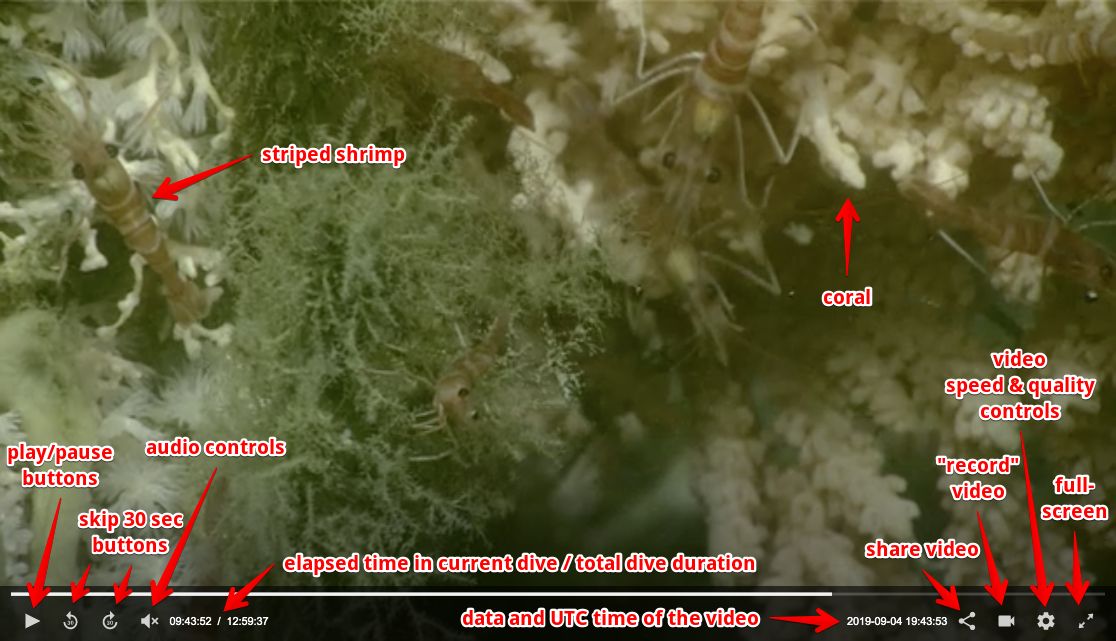
The video widget lets you:
- play and pause
- control audio volume and mute
- watch video at half speed, normal speed, 2x speed, 4x speed and 8x speed
- skip forward and backward 30 seconds in the video, or 5 seconds using your keyboard arrow keys
- see the video date and time
- save video clips in your personal library
- take snapshots
- choose video quality
- share a link to the video
- expand to full screen
You can use button presets to enter annotations quickly — at a single click.
Button sets now live in their own widget called Quick Button Sets. The widget will appear when using any of the default layouts, or can be added manually using the Widget Add button in the title bar.
Use the  button to add button sets, multiple button sets can be added. The button set currently on display will appear with a blue title. Button indices can be toggled on/off using the More button
  drop down menu. The drop down menu also includes a shortcut to the Button Set Management page https://data.oceannetworks.ca/TaxonButtonSetConfig
Buttons are based on either a TAXON or an ATTRIBUTE.
When a button is selected it will appear in the Annotation Entry widget.
Clicking on a taxonomy-based Button will populate Annotation Entry with:
- the taxonomy and taxon
- any default attributes assigned to that taxon
- the timestamp when the button was clicked (this can be changed later by clicking CAPTURE TIME)
Clicking an attribute-based button will populate the current annotation with the attributes associated with the button in Taxon Button Set Config, as well as any default values that have been assigned.
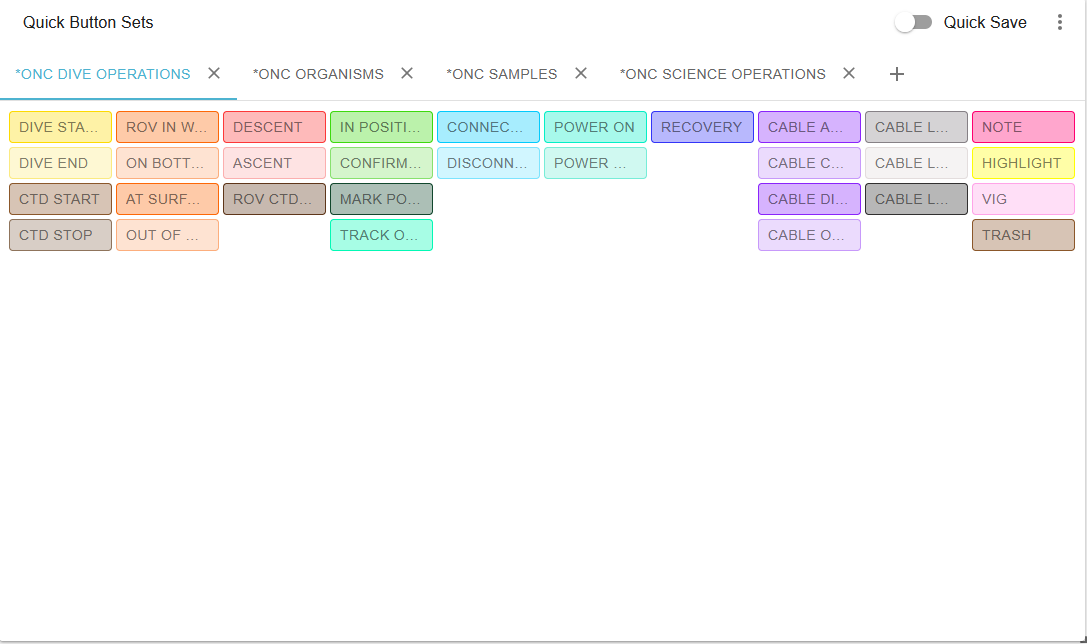
You can choose from button sets that have already been prepared, or you can make your own custom button sets (explained in Advanced Tools below).
Quick Entry: Keyboard Entry
You can also use keystrokes for quick entry. Use the number keys to create annotations corresponding to that button number.
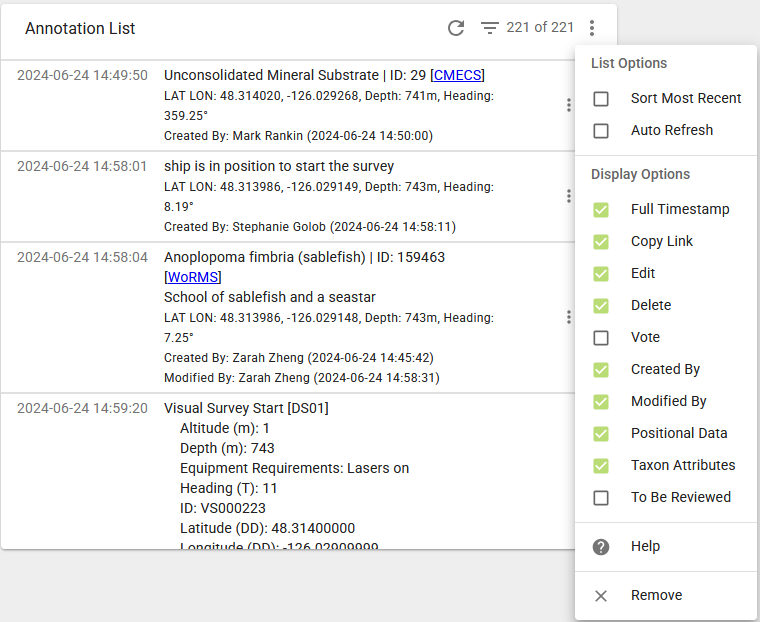
The Annotation List widget as the name describes, lists all of the annotations created for the current dive. The More button at the top right-hand corner of the widget allows you to configure a number of List and Display options.
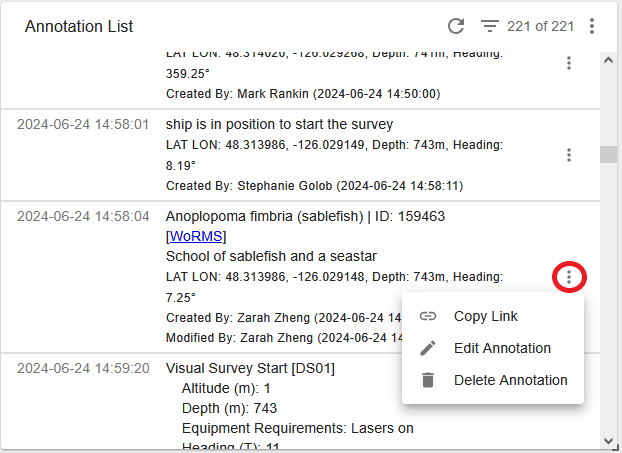
Each annotation also has a more button which allows the user to share a link to that annotation, edit the annotation (more on this below) or delete the annotation. NOTE only users with special permissions can delete another user's annotations, most SeaTube users will only have permission to delete their own annotations.
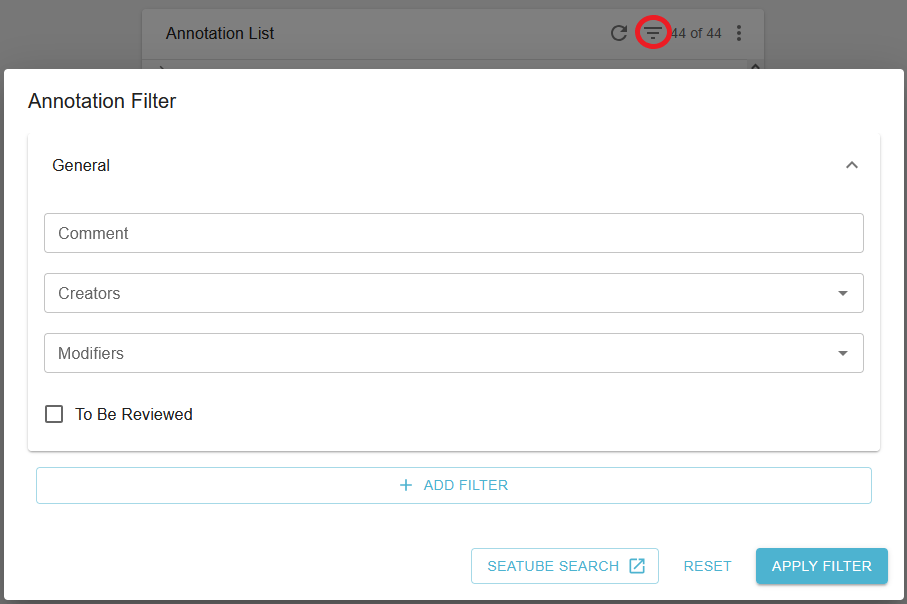
The Annotation List widget also has a filter option so users can search for specific annotations by comment, annotation creator or modifier, as well as filters including taxonomies, attributes, etc. Filters can be removed by opening the filter option and clicking on Reset.
The annotation entry widget is both powerful and customizable. A new feature has been added which allows users to stage annotations in anticipation of activities. This feature can be selected by clicking on the 3 dots in top right hand corner and selecting 'Show Drafts'.
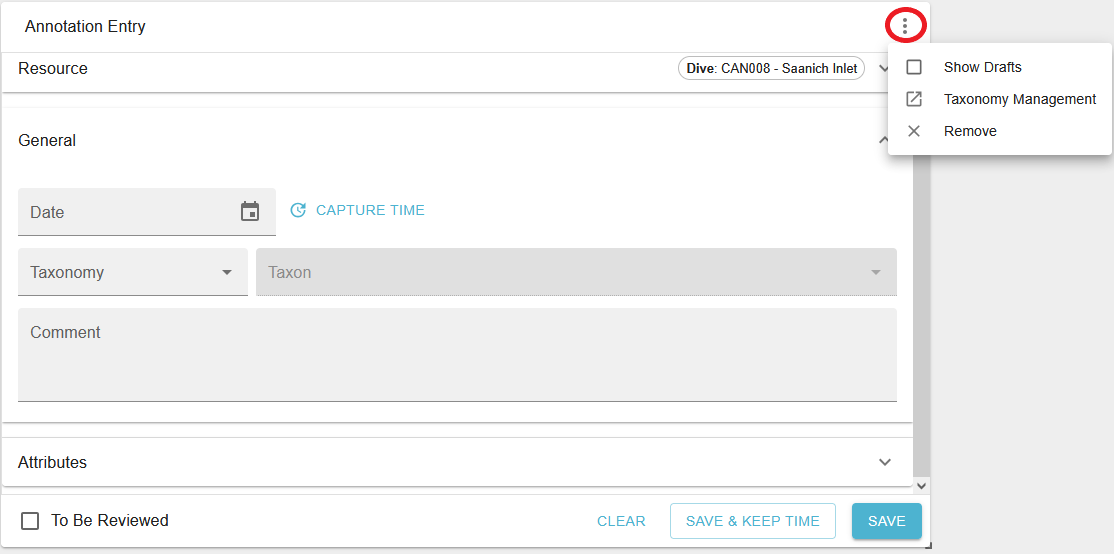
You can use taxonomies to standardize annotation entries. This makes them easier to find by filtering as well.
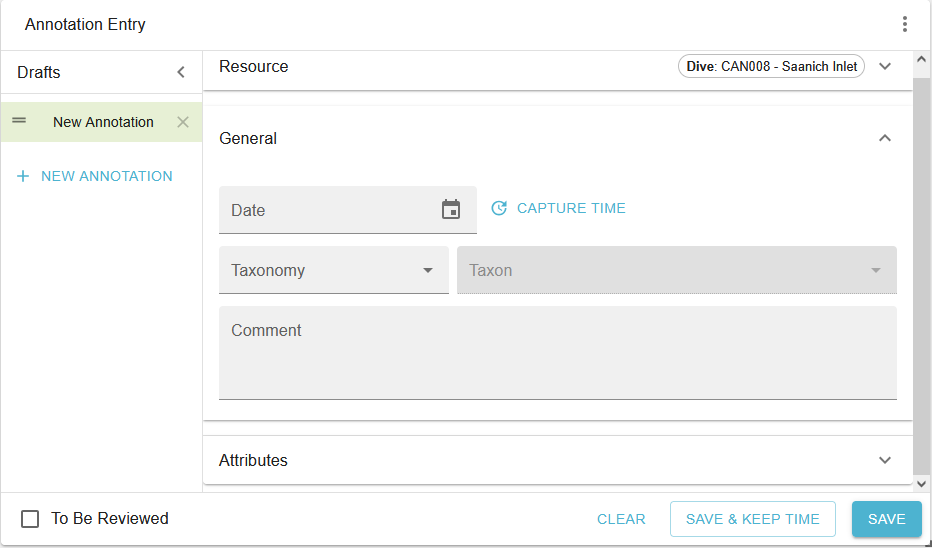
New draft annotations can be added by using the  button, there is no limit to the number of draft annotations that can be created. All draft annotations will appear in the left hand column under Drafts, when they are saved they will disappear from this bar and will be visible in the Annotation List. Annotations that are being edited will appear in the Drafts column as well.
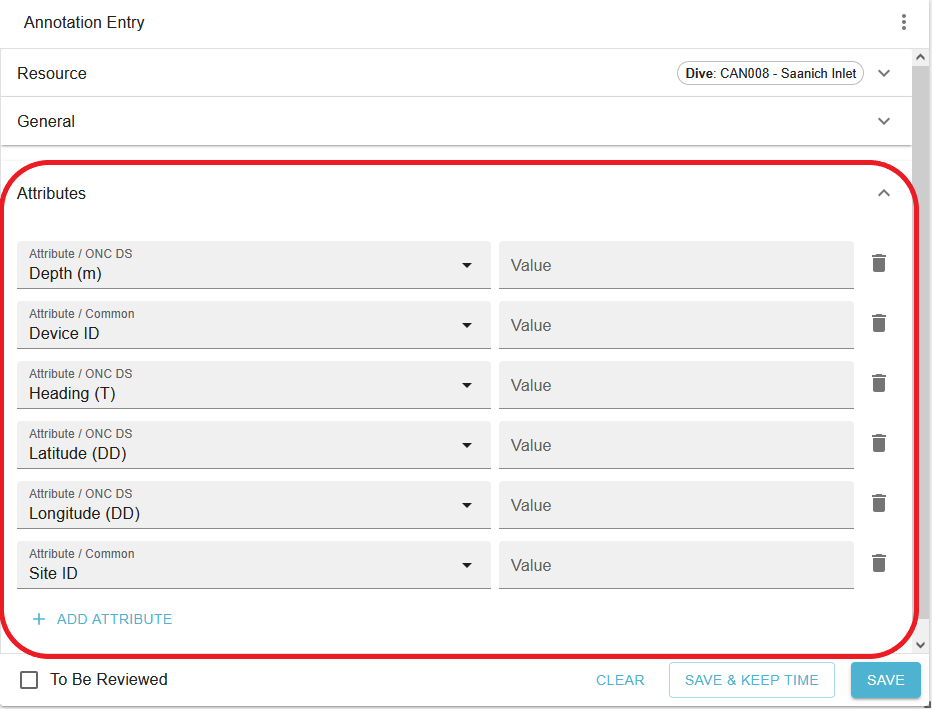
Attributes can be found in the Annotation Entry widget below the General section
In addition to taxonomies and taxons, you can add attributes, such as count, material, depth, etc. to your annotations. Attributes are standard pieces of information that are commonly used in annotations. Attributes can be added ahead of time to pre-built button sets, or can be added as needed by using the  button.
NOTE If you switch between buttons that have common default attributes any values that have been filled in previously will remain in place unless cleared.
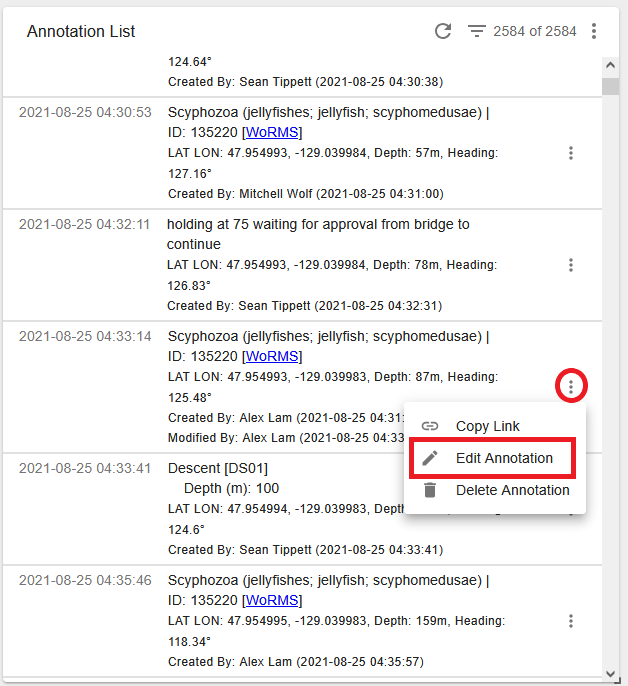
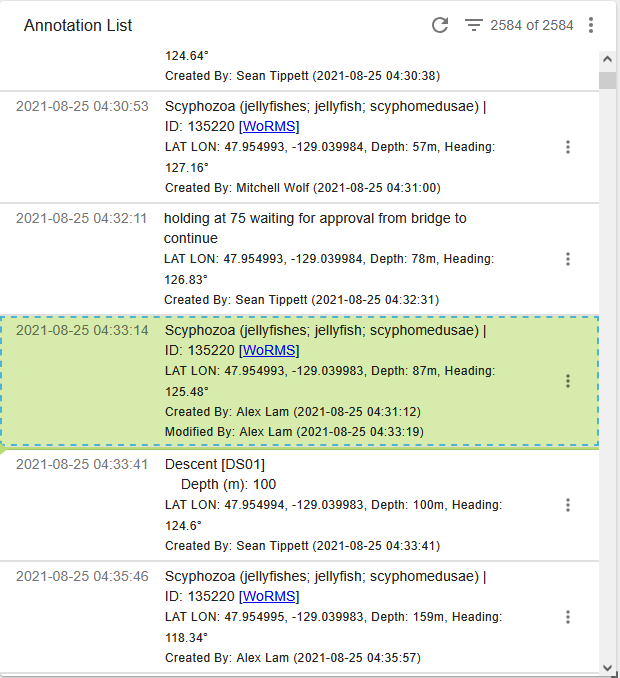
Annotations can be edited by clicking on the 3 dots in the Annotation List widget and clicking Edit Annotation. Annotations that have been selected for editing will appear green with a checkered blue box around them.
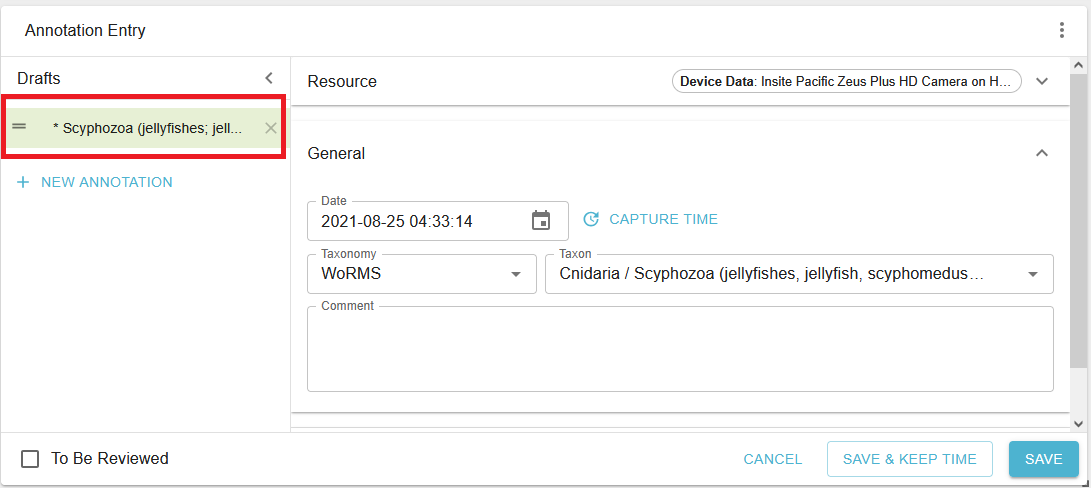
The annotation selected for editing will appear in the Annotation Entry widget. If you have Show Drafts selected in the Annotation Entry widget you will see the annotation appear in this column with an * to indicate that it's being edited. If you've changed your mind about editing the annotation you can click Cancel, which replaces the Clear button in Edit mode. If cancelled the annotation will disappear from the Drafts column and will no longer be highlighted in the Annotation List widget. When you've finished making your edits you can click Save.
If the dive is Active (in progress), you will be directed to the Historical Video (previously recorded) mode when you first open the dive page and you will see a green 'DIVE IN PROGRESS' header button, clicking on this button will take you to the Live Video mode.


Note that this feature is only available when a dive is currently in progress; for previously completed dives Historic mode is the only option, so the icons will not appear.
Historic Mode
This is the default mode for SeaTube dive video, and is active whenever the main SeaTube Dive Log window is first opened, whether a current dive is in progress or not.
Upon entry, the Video widget will start playing the archived video from the start of the dive, and any previously entered annotations will appear in the Annotation List widget. All widgets (Map, Annotation List, and Sensor Readings) will highlight the values synced to the current video position time.
You can advance/rewind the video using the provided controls, or click on an annotation in the Annotation List to reset the video to corresponding point in time.
Creating an annotation will by default use a timestamp that corresponds to the current point in time of the video being displayed.
“Capture Time” will capture the current video time; the user may also enter/edit the time to be used using the controls provided.
Live Mode
This mode enables annotation teams to watch a live video feed and create annotations based on what they are witnessing in real-time. By default annotations that are created will utilize the current time for the timestamp (as provided by their personal computer OS).
“Capture Time” will capture the current system time; the user may also enter/edit the time to be used using the controls provided.
During Live mode, the user is not able to click on a previous annotation and watch the video from that point; in order to do so, they must go to the Historic mode window.
Notes
Given the delays in receiving and re-streaming live video through SeaTube, some organizations (such as NOAA) require annotators to watch a more direct video stream to minimize these delays, but still prefer that the annotation time default to the current system time.
To enable this, the organization will provide a separate video URL for their users to watch in one browser window, while entering annotations via SeaTube in a separate browser window.
To make sure the user is not confused with more than one video stream playing at once, they configure SeaTube to not display any video while in Live mode.
Both NOAA and ONC are working on an enhanced solution that would allow the video time to be embedded directly in the video itself, which will resolve the original issue of the time delays between receiving a video stream and creating an annotation for a precise point in time.
Searching Annotations
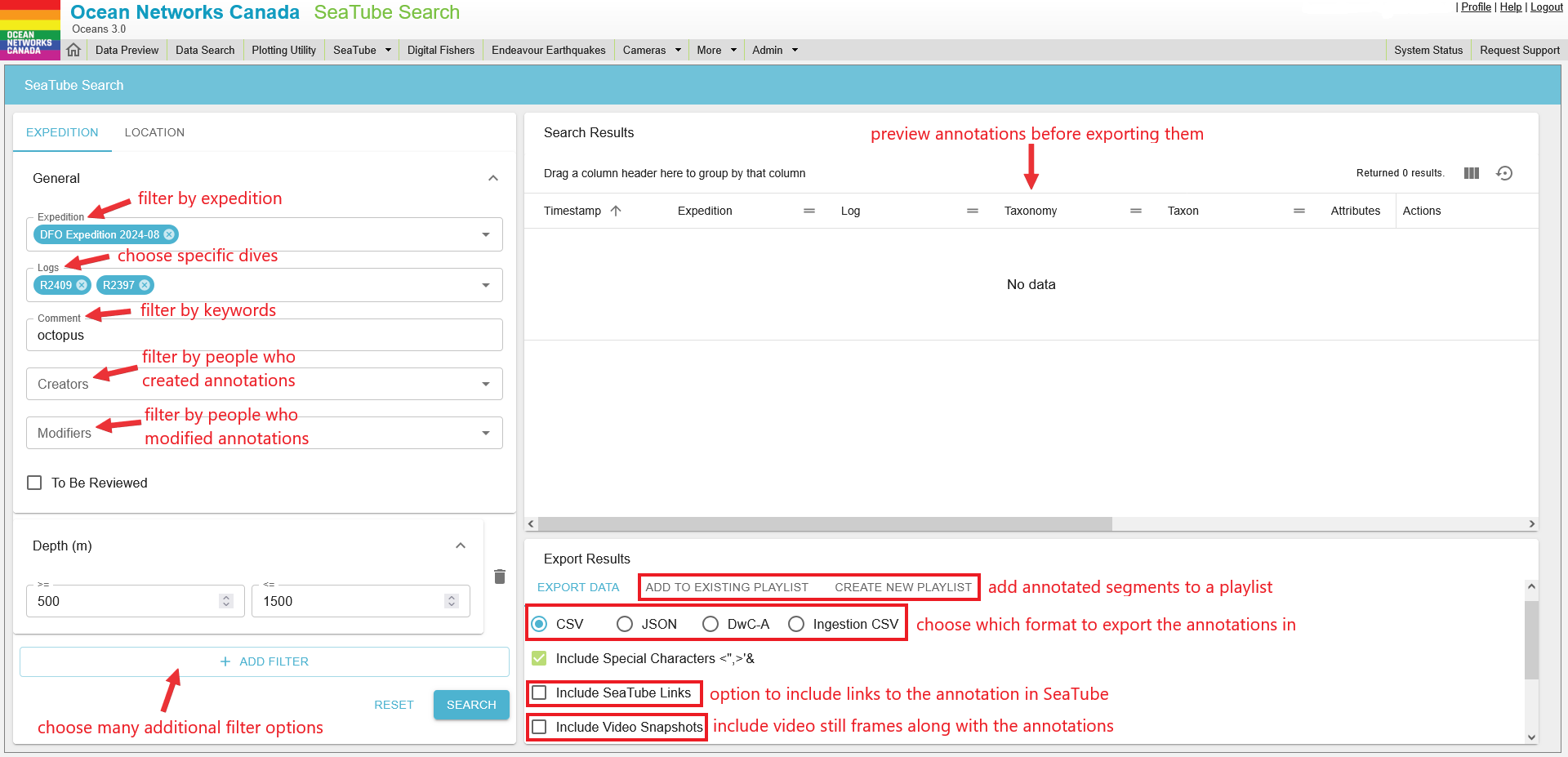
In addition to the filter search in Annotation List, you can search through all video annotations to find video segments and annotations of interest. SeaTube Search allows you to scope your search by expedition(s), dive(s) and many other filter parameters.
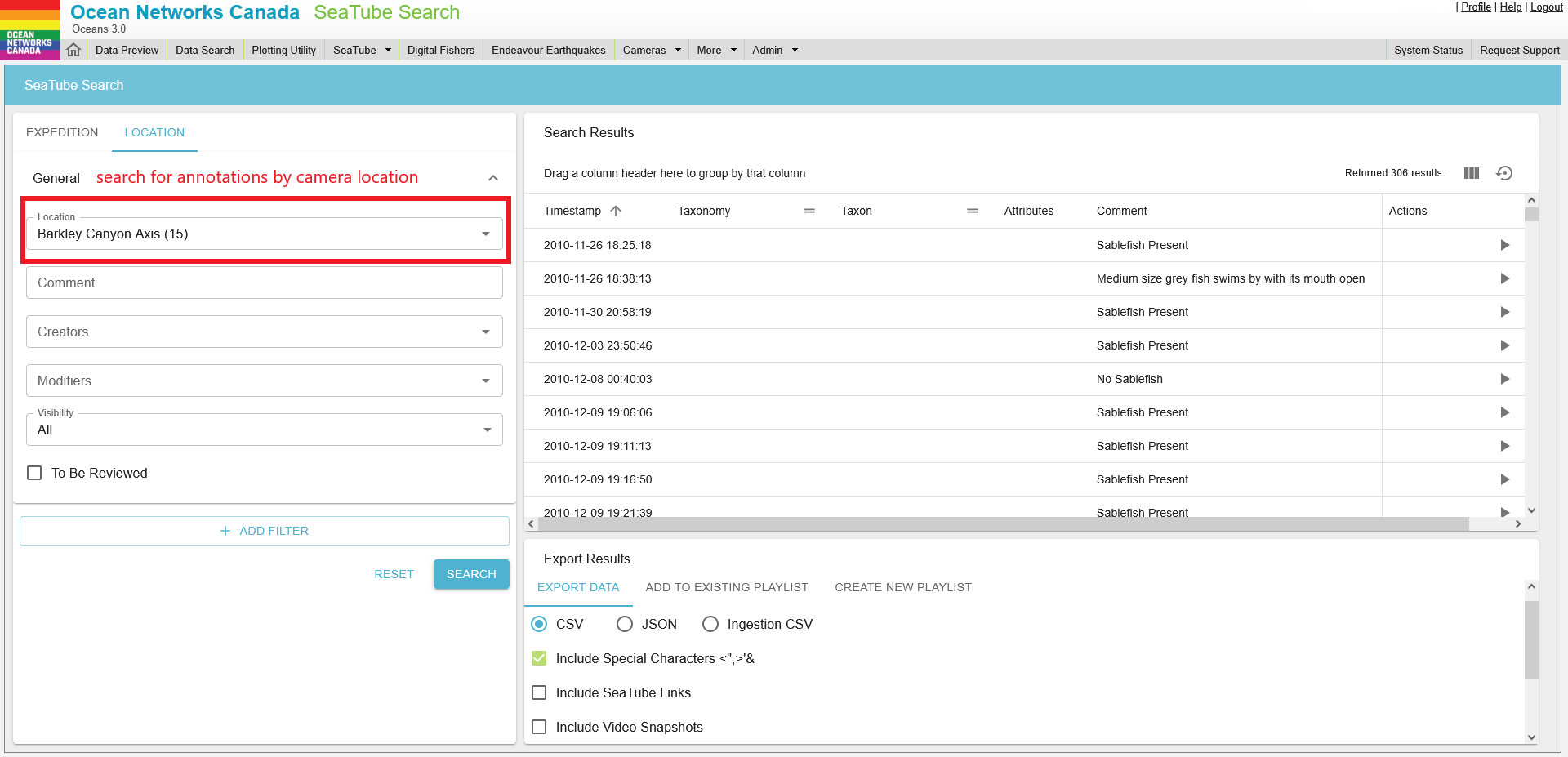
Annotations can be also be searched by fixed camera location. All other filters and export options remain the same as the expedition option.
Managing Expeditions & Dives
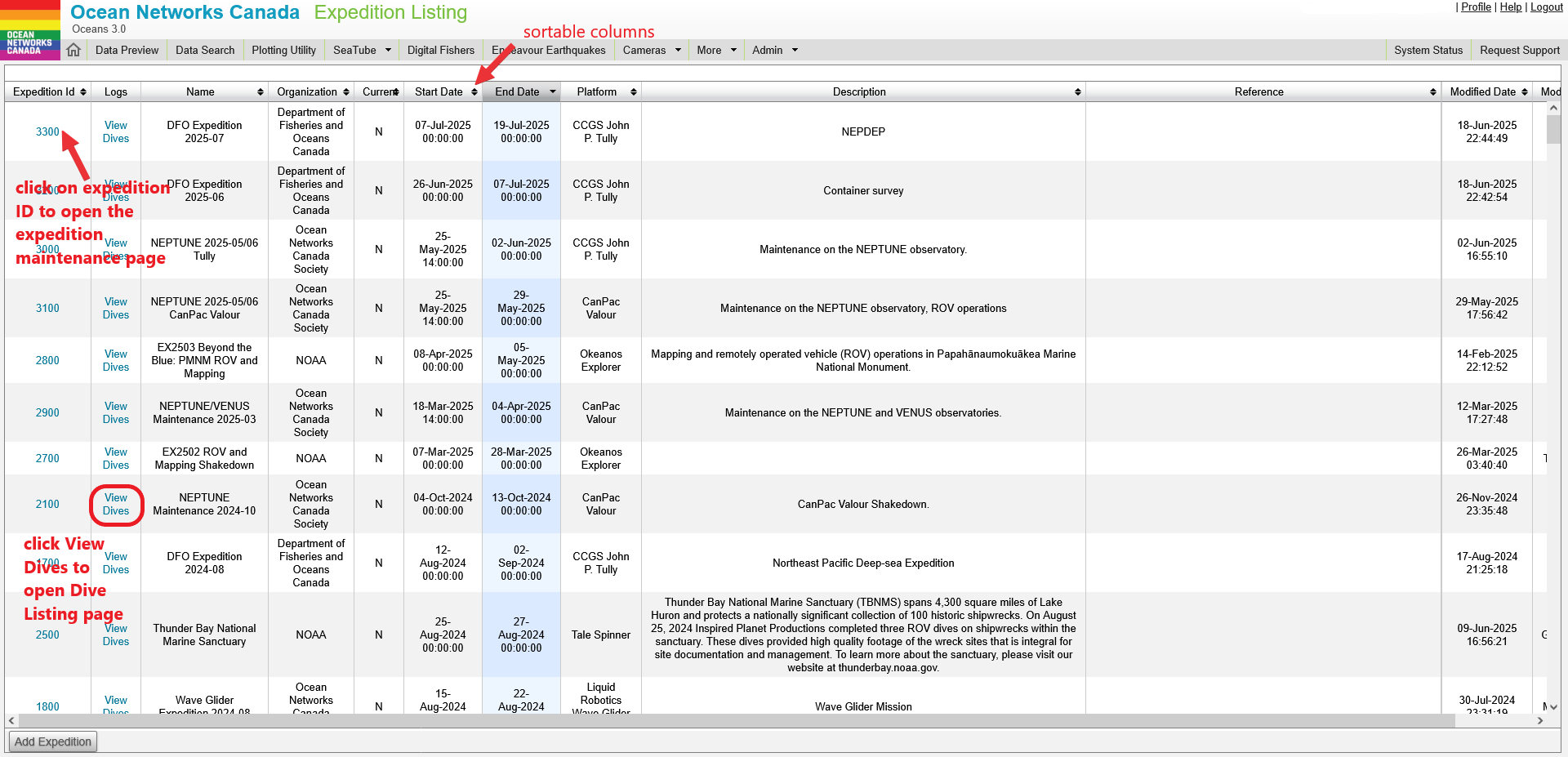
The Expedition Listing page shows all expeditions catalogued within Oceans 3.0 since 2006. Not all expeditions had ROV dives with video recordings.
- Click a column header to sort the list by that column in ascending order; click it a second time to sort in descending order.
- Click the Expedition ID for details about it; this takes you to its Expedition Maintenance page.
- Click View Dives for an expedition to open its Dive Listing page, where you can see a list of all catalogued dives from that expedition.
- Expeditions are usually set up by ONC Data Stewardship staff.
Users with administrative permissions can create their own Dives through the Expedition Management page.
To add a dive to an expedition, select the expedition from the list and then click on the 3-dot More button in the SeaTube Catalog Details panel:

Click 'Create Dive':

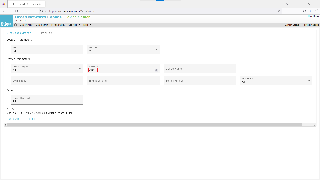
A popup window will appear for you to enter dive information:
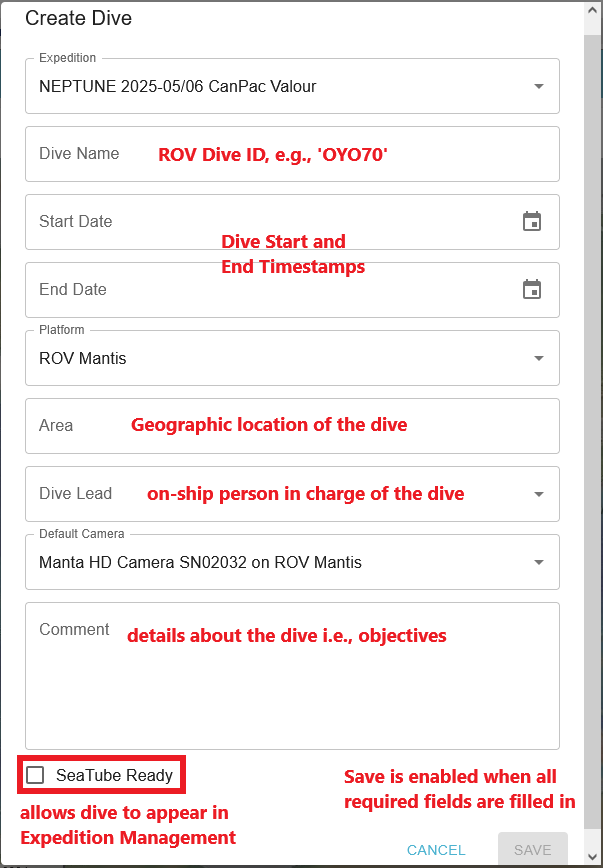
Click Save.
The dive will then appear in Expedition Listing and Expedition Management (if the correct settings were used). Refresh Expedition Management if the new dive does not immediately appear.
Tips:
- All information entered about a dive can be edited later in Expedition Management by selecting the Expedition, then clicking Edit Dive in the SeaTube Catalogue Details 3-dot menu
- ROV Dive ID - there is often an existing naming convention established by the ROV crew; ask them if unsure
- Start Date/End Date
- It is recommended when creating a dive to enter a broad time range to ensure no annotations are cut off. Set the 'Start Date' somewhat before the time the dive is expected to begin, and set the 'End Date' a full 1-2 days later to cover all possible situations. Once the dive has concluded, go back and correct these values to the actual dates and times to prevent issues caused by overlapping dives
- Important: these timestamps are in UTC, not local time. Set times accordingly to ensure the duration of the entire dive is captured
- The time range of the dive MUST be within the time range of the parent Expedition to display properly in SeaTube. Click on the Expedition ID in Expedition Listing to see information about the cruise
- If the correct Expedition, Platform, Dive Lead, or Default Camera does not appear in the dropdown list, contact ONC to have them added
Advanced Tools
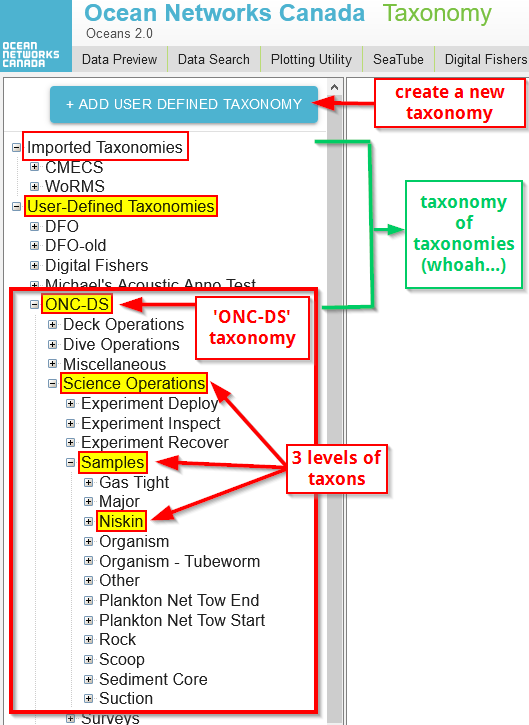
Taxonomies are hierarchical lists of standardized annotation types called taxons. There are two kinds of taxonomies in SeaTube: Imported and User-Defined.
If you have admin privileges for your organization in SeaTube, you can create and edit User-Defined taxonomies in Taxonomy Management.
The taxonomy list
Edit a Taxonomy

New attributes can be created by admins in Attribute Management. Attributes can be organized into custom Attribute Groups to make them easier to find.

Data Types
Attributes can have various data types, which determine what kind of values can be entered:
- Boolean - 2 possible values: true or false
- Integer - whole numbers
- Number - decimals
- Select - choose from a list of predetermined options
- String - free-text entry
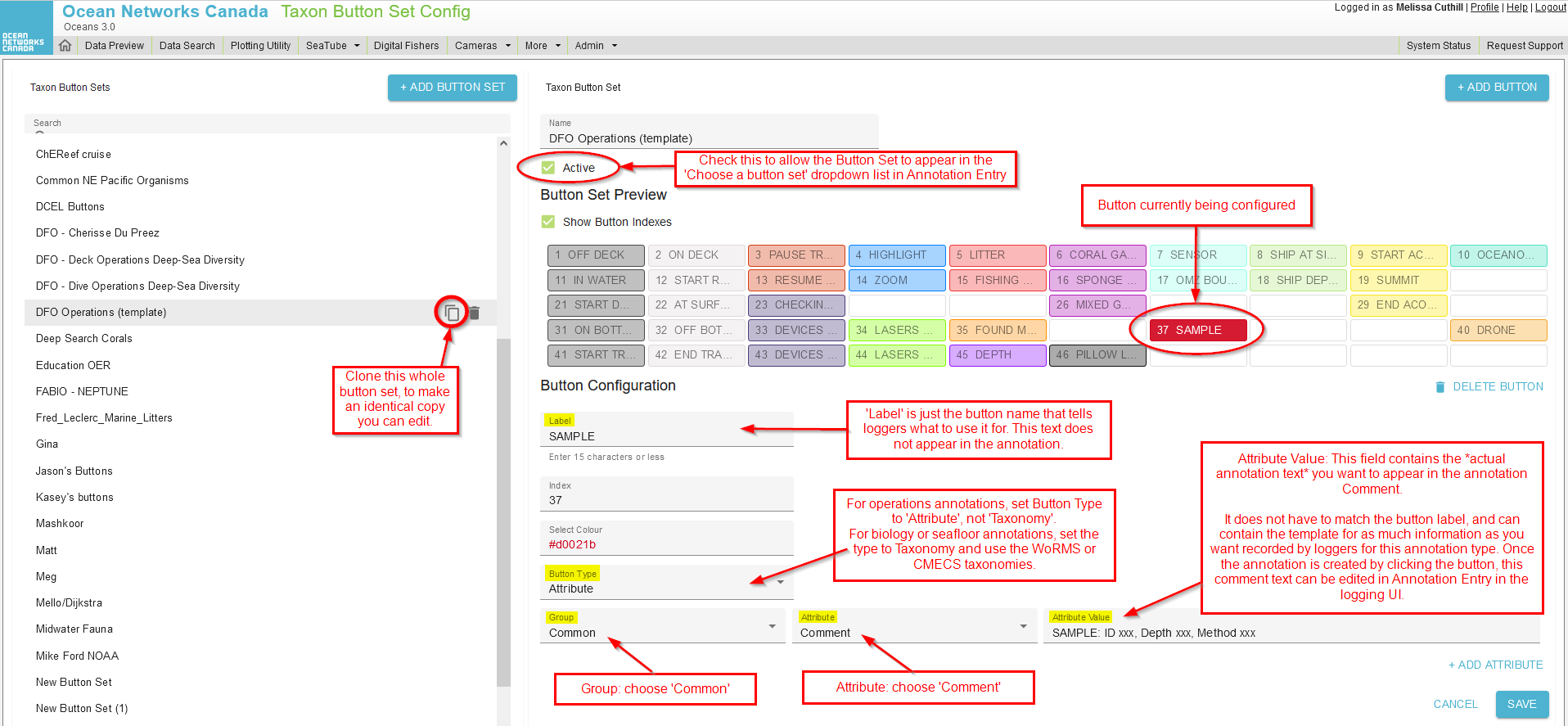
You can create your own custom button sets using the Taxon Button Set Configuration screen. Buttons are based on either taxonomies or attributes.
You can also clone existing button sets, creating an identical copy that you can edit.

It is recommended to create Taxonomy type buttons. They make button sets more robust and are easier to filter on.
Create a Taxonomy button

Create a Comment-only button
- To create a button solely for Comment text (for example, if there's something you frequently annotate that isn't included in a taxonomy), you will create buttons with the Button Type 'Attribute', where the attribute in question is the 'Comment':
Tips
- The button Label is not the text that will appear in the annotation - it's solely for the user to identify what the button is. The actual text of the annotation will be:
- for Taxonomy button types: the Taxon name associated with the button, and any Comment text
- for Attribute button types: the attribute name(s) and value(s)
On-ship Dive Logging
The SeaTube dive logging functionality can be implemented on different ships that ONC uses to conduct field work, and supports logging dives on many different Remotely Operated Vehicles (ROV). ONC can also provide this service to other organizations that wish to use this tool during their expeditions. The system supports simultaneous dive loggers, ships, and ROVs that may be required for operations. If a satellite connection is available, the dive logs can be synchronized between ship and shore. Otherwise, the dive logs are synchronized once the ship-based server is back on-shore.
Two quick-reference guides have been created to support our clients that are using this tool (in addition to all the other help information in this page):
Expert Review
View the SeaTube V3 Expert Review Help page for information on how to review annotations and get your name accredited to ONC published datasets!
Citing Video/Images in Publications
To cite video or images in publications, navigate to the Dataset Landing Page for the relevant camera deployment, and use the DOI.
| SeaTube Dive Log (ROV video/stills) | |
|---|---|
| Step 1. Find/Open the Device Listings page for the camera | Click on the Settings cog at the lower right of the video panel and select Video Information. 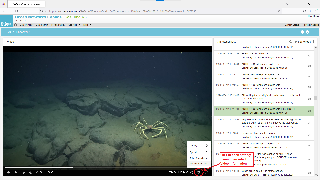 In the pop-up panel, select the device ID for the camera. Also take note of the timestamp for the video file.
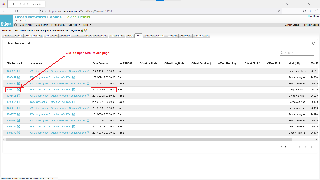
Open a Device Search page in Oceans 3.0 (More > Infrastructure > Device Search) and paste the camera device ID into the Device ID field, then click 'RUN SEARCH'
In the RESULTS tab, click on the link to the Device Listings page for the camera
|
| Step 2. Go to Site tab, open Site Device page | Select the Site tab in the Device Listings page, and click on the link to the Site Device for the relevant deployment of the camera
|
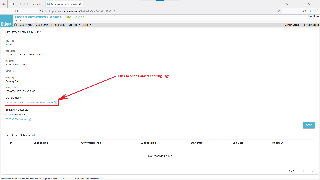
| Step 3. Open Dataset Landing Page | In the Site Device page, click on the link to the Dataset Landing Page (under DOI Datasets)
|
| Step 4. Use the DOI in publications, using the format shown under 'DOI Citation'. |
|
| Demo video | (Watch demo video for citing ROV dive video SeaTube V3) |
| See also | How to cite ONC data https://www.oceannetworks.ca/data/how-to-cite-onc/ |