You may want to know which locations have hydrophone data. You can find all of the current locations using ONC's Instruments and Cables Web App and all historical locations using the Current and Historic Instruments Web App.
Step-by-step guide: Currently deployed hydrophones
- Load the Instruments and Cables Web App: https://www.arcgis.com/apps/webappviewer/index.html?id=af2350131ebe498381a326793b870a20
- Wait for the web app to load, then open the slide-up tray from the bottom of the window
- Choose the ONC Instruments tab, then deselect Filter by Map Extent
- Choose Options - Filter
- In the pop-up window select + Add Expression
- Define the first 2 dropdowns in the filter expression: "devicecategoryname (String)", "is any of"
- Search in the 3rd dropdown for "hydrophone" and select that category
- The map will be filtered to show only nodes and hydrophone instruments - you can pan and zoom to select the geographic extent of interest
- The hydrophones will also be listed in the table displayed in the slide-up tray
Step-by-step guide: Current & historically deployed hydrophones
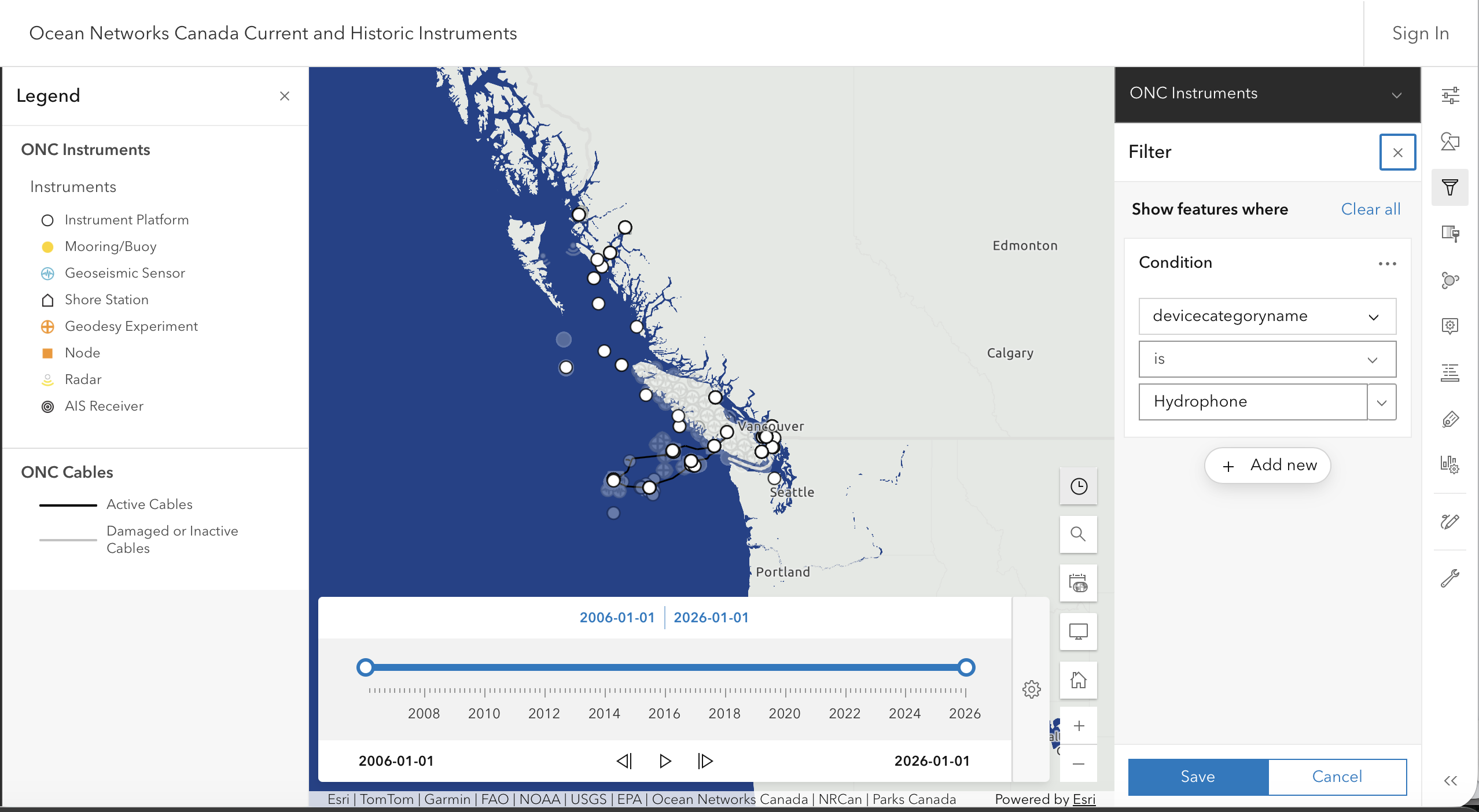
- Load the Ocean Networks Canada Current and Historic Instruments Web App: https://www.arcgis.com/apps/mapviewer/index.html?webmap=44a6d9c5090e4d1da4a31cfcc9289ea6
- Wait for the web app to load, then select the Filter tool in the vertical tool bar at the right side of the window
- In the pop-up window select + Add New
- Define the first 2 dropdowns in the filter expression: "devicecategoryname", "is"
- Search in the 3rd dropdown for "hydrophone" and select that category
- Set time boundaries for hydrophones displayed using the time selector pop-up that appears when you click the Clock icon
- The map will be filtered to show only nodes and hydrophone instruments
- pan and zoom to select the geographic extent of interest
- click individual instrument locations for more information